
Introduction
This guide explains how to set up your Yealink phone with a Winet phone line.
Find the phone's IP address
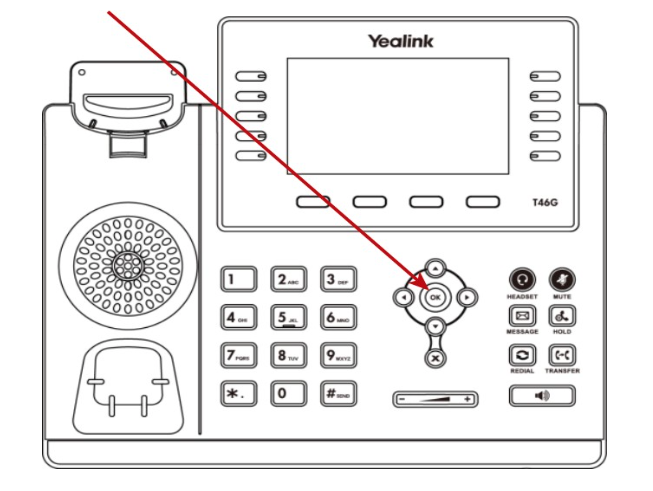
The easiest way to set up the phone is using your web browser. To do this, you'll need the phone's IP address. You can find it as follows: Press the OK button once to display your phone's IP address (red arrow).
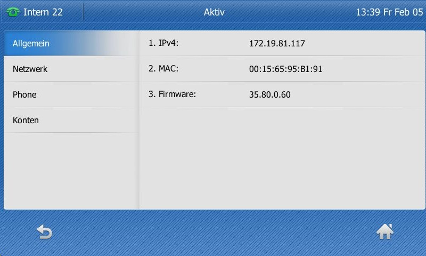
Your phone's IP address will now appear on the screen; enter it into your computer's browser address bar: http://172.19.81.117
Log in to the web interface
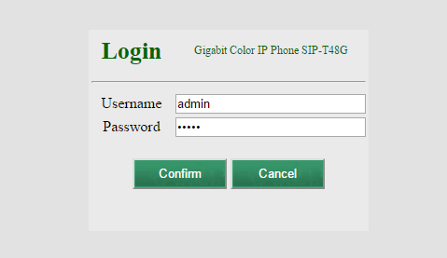
For security reasons, you must log in each time you want to change settings on your phone. You can change this password at any time later. The default login credentials are as follows:
Username: admin
Password: admin
Set Up Identity (myPhone)
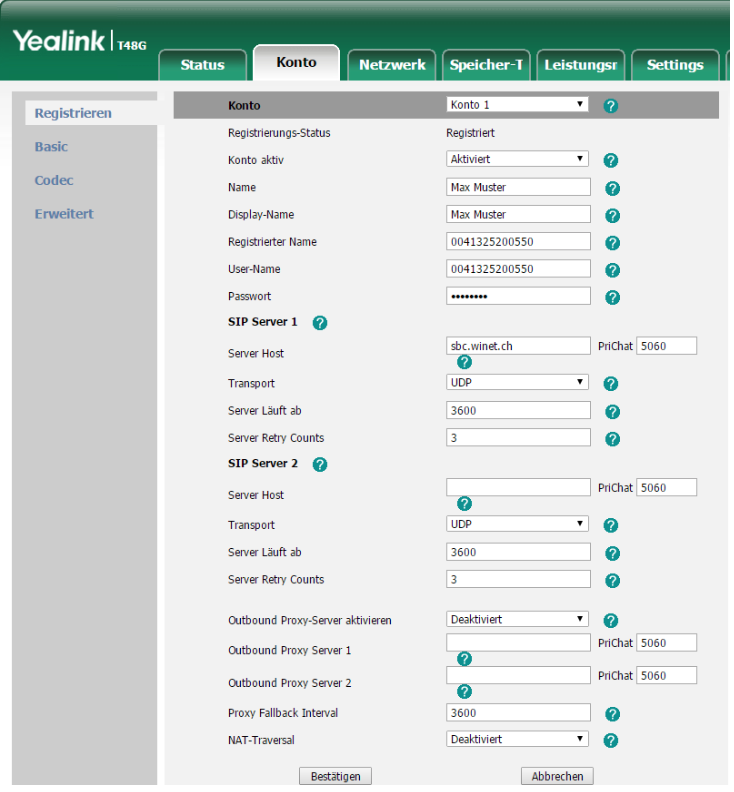
Go to the «Account» tab and enter the required information there (see screenshot). You can find the information you need at https://my.winet.ch by clicking on your phone number.
| Account Active | Enabled |
| Name | Name Displayed at the Other End |
| Display Name | Name shown on the phone display |
| Registered Name | 0041xxxxxxxxx |
| Username | 0041xxxxxxxxx |
| Password | ************** |
| Server Host | sbc.winet.ch |
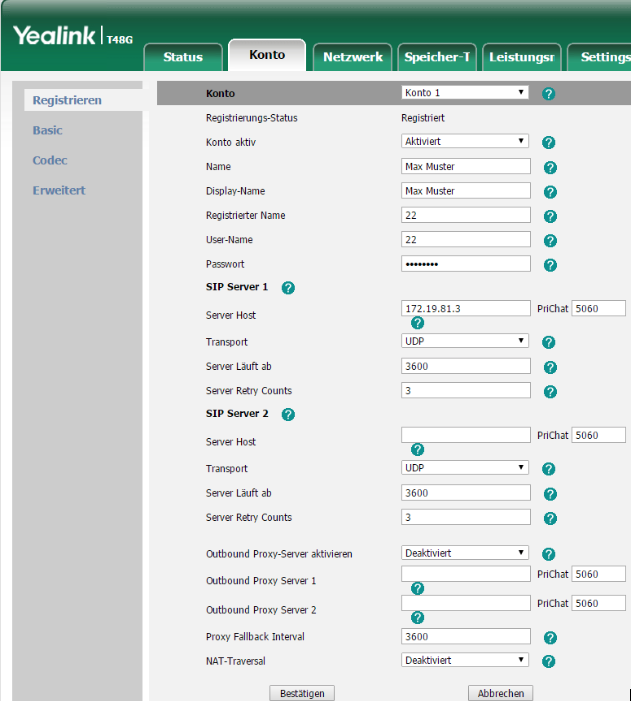
| Account Active | Enabled |
| Name | Name Displayed at the Other End |
| Display Name | Name shown on the phone display |
| Registered Name | Extension (e.g., 50) |
| Username | Extension (e.g., 50) |
| Password | Your extension's password |
| Server Host | IP address of the phone system |
Port Settings
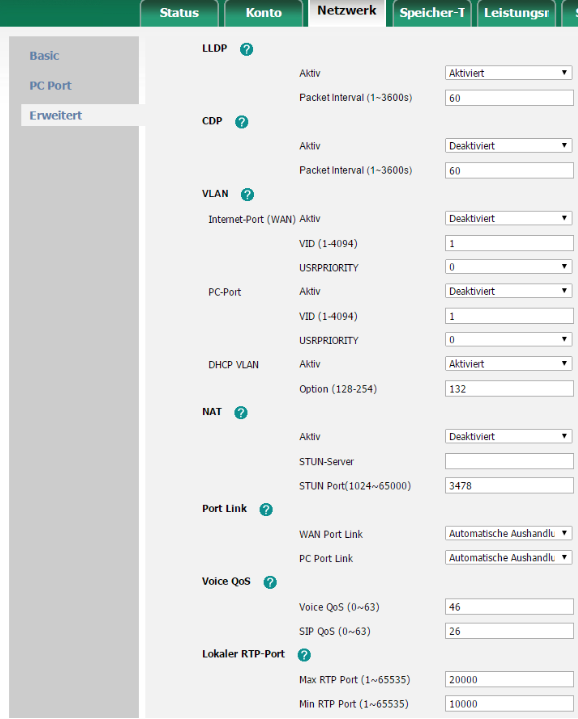
To ensure that call packets are sent through the correct ports, additional settings are required. To do this, go to the «Network» tab, select the «Advanced» category, and adjust the local RTP ports there. Enter 20000 for the Max RTP Port and 10000 for the Min RTP Port.
Configure Function Keys
If you want to monitor another extension, you can change the button type to «BLF» and name the button. To be able to take incoming calls from an extension, you must also enter «*8» in the “Extension” field. *8 is generally the code used to take over incoming calls.
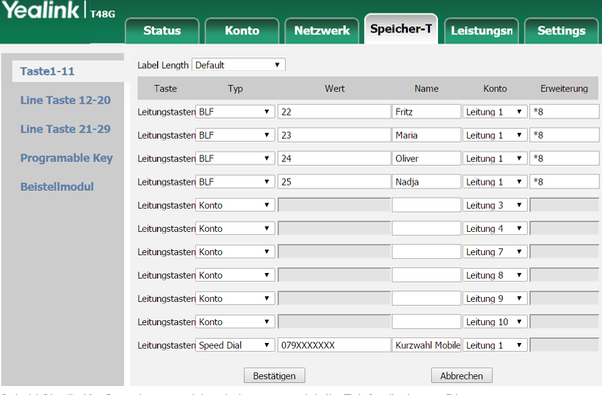
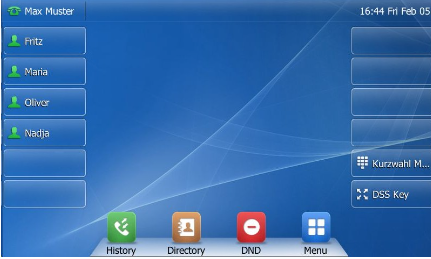
Once you have saved the configuration, your phone's display will update. By default, extensions are shown as green silhouettes when they are available. If one of the extensions is on a call (busy), the button will turn red.