

Quick Start Guide
Here you can see the most important features of the X-Lite soft client, which you'll be able to use after installation.
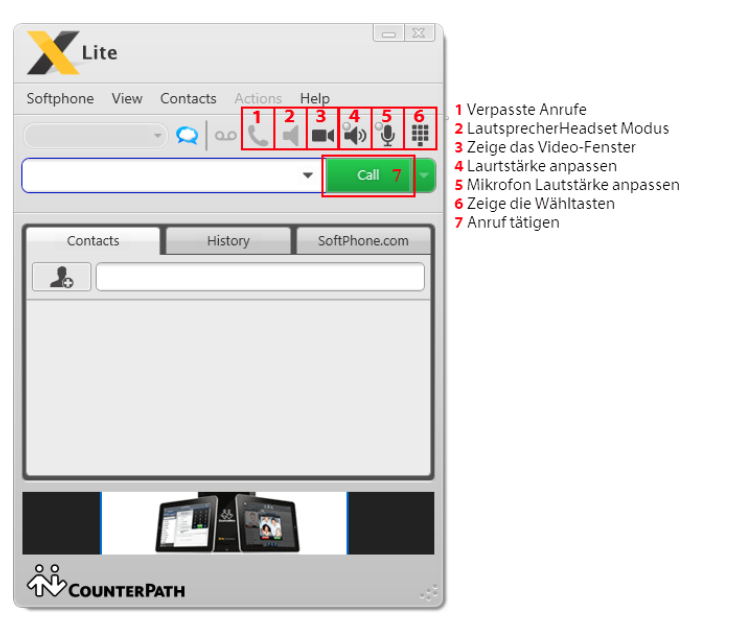
Start of Installation
Download
First, download the free X-Lite Client from the following website: http://www.counterpath.com/x-lite
Next, select the version 4.0 that is compatible with your operating system.
Installation
First, please read the General Terms of Use carefully and accept them. You will now be asked where you would like to install X-Lite. Select the desired path here.
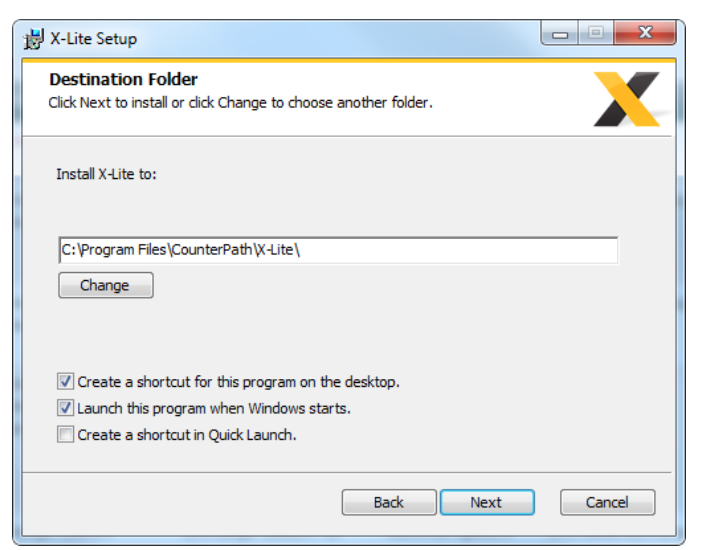
Now choose whether you want a shortcut on your desktop, whether you want an icon to appear in your Quick Launch bar, and/or whether you want the program to open automatically when Windows starts.
Setting Up the Number
Before you can use X-Lite with your desired number, you'll first need to make a few changes to the settings.
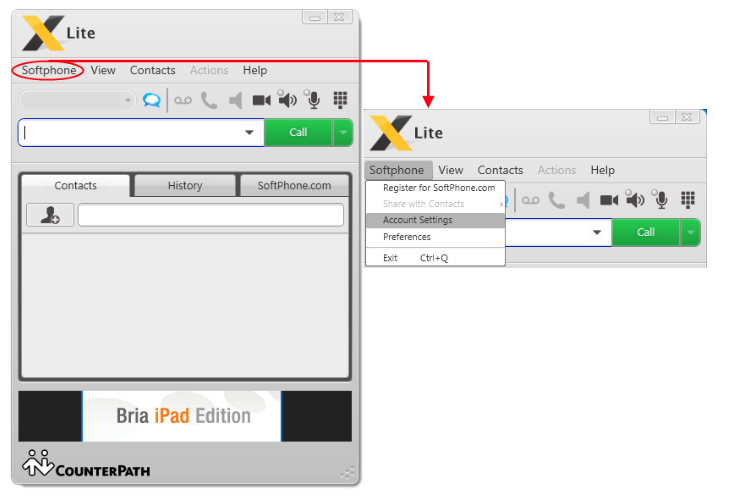
Click „Softphone“ in the upper-left corner, and then click „Account Settings.“.
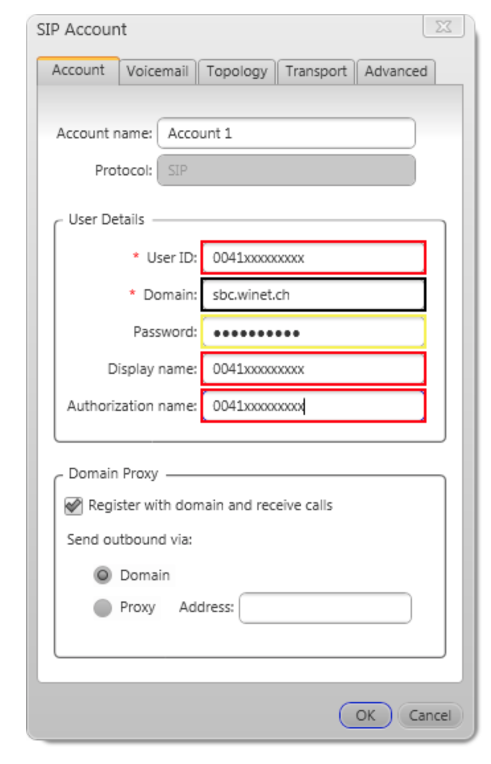
A window will now appear where you’ll need to fill in the highlighted fields. To obtain this information, simply log in to your account at https://my.winet.ch. There, under the „Overview“ tab at the very bottom, you’ll find „List of Numbers“ (see image below); here, you can select and click on the number you want for X-Lite.

Inserting the Data
Finally, you'll be taken to a page where your phone number information is stored. On the next page, the images will show you what information to enter and where in the X-Lite window.
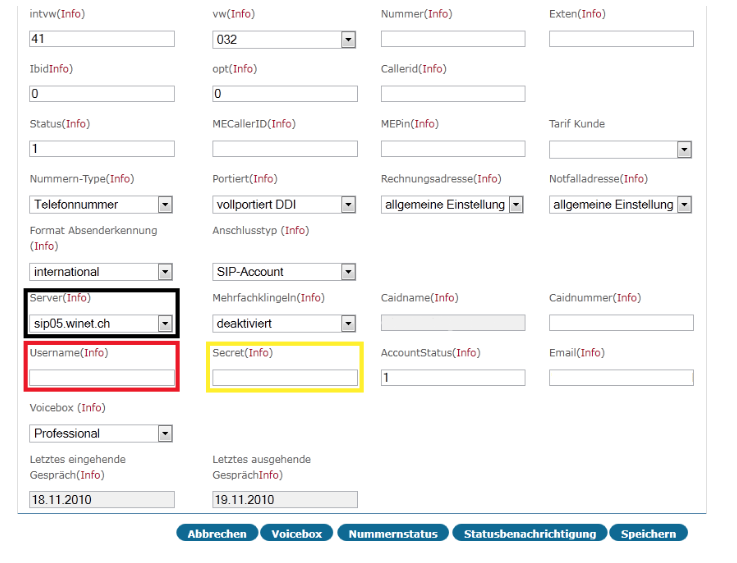
You can easily copy your data from the page into the X-Lite window here. You can use the colored markers to see where to paste each piece of data.
The last setting you should configure is in the „Topology“ tab under “Firewall Traversal.“ Here, select “Discover public IP address” and enter the Winet server, which is stun01.winet.ch. You can leave the other two fields (User name, Password) blank.
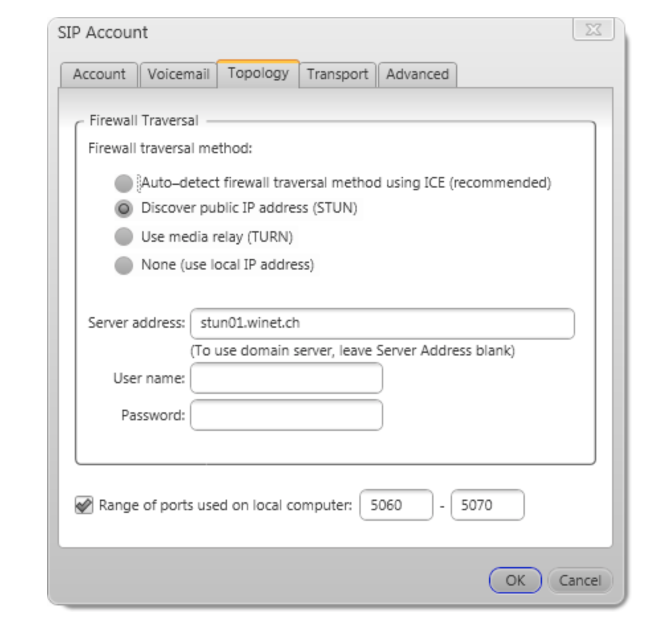
Once you have entered this information, your X-Lite client is ready to use. You can now use it to make phone calls.
Important Information
Multiple Registrations
Not all hPBX systems support multiple registrations. The Ayrix hPBX supports multiple registrations starting with version 5.0.
If you're unsure whether you're eligible for multiple registrations, feel free to contact us at any time at customer.service@winet.ch Contact us.
Ad Format
This is a phone setting, not a setting within the app itself. Every phone has its own settings for this. There are also differences among Android models. While a Samsung and a Xiaomi are similar, they aren't exactly the same. You'll have to figure out for yourself how it works on your phone.
Support Winet Voicetec Solutions AG
For support inquiries or technical assistance, our VoIP engineers are available to assist you during our business hours.
Service Period
Proactive, staffed operational support is available during business hours (AZ) on business days from Monday through Friday (excluding holidays) from 8:00 a.m. to 12:00 p.m. and from 1:30 p.m. to 5:00 p.m. During other times (OT), the optional on-call service is available.
Coordinates
You can contact our Customer Service as follows:
- Email service@winet.ch (to open a ticket)
- Residential Customers 0900 66 3932 (CHF 2.50/min)
- Business Customers +41 56 520 20 00