

Administration
Change Password
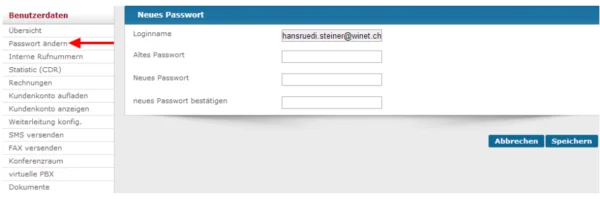
To change your password, first click on "Change Password" (red arrow). Then enter your old password and your new password twice.
Internal phone numbers

You can call any Winet phone number for free at any time. With this search feature, you can enter a phone number and look it up. This will show you whether the number is in our system and is therefore free to call. Be sure to use the correct format (e.g., 41998887766).

Statistics (CDR)

If you're wondering how much your next bill will be, or if you want to see which number has generated the most charges, the statistics are perfect for you. In the report settings, you can select which month to display. You can also specify a „From/To“ range, allowing you to view time periods down to the minute. Under „My Phone Numbers,“ select which of your numbers should be included in the statistics. «Calls» lets you distinguish between outgoing and incoming calls. Under the “Phone Data” field, you’ll find the statistics you’re looking for. These can be exported via “CSV Export.”.
Invoices
You can view and download your monthly invoices directly in your customer account under «Invoices.» We’ll send you an email when the invoice is available. In your account, you can choose whether you’d like to receive the invoice as a PDF or by mail (CHF 5.– fee for invoices up to CHF 100.–).
myPhone Payment Methods
Winet invoices are due within 10 days. In the event of repeated late payments, we reserve the right to switch your account to a prepaid system. This means your account will remain locked until the outstanding invoices are paid and you deposit a prepaid balance of your choosing. You can top up your account at any time, regardless of the payment method you use.
to add credit to your account. The system will then automatically mark the bills as paid until your balance is depleted. If you set the notification limit to, for example, minus CHF 20, the system will automatically notify you when your balance has dropped to CHF 20. You can make credit card payments directly in your customer account under «Top Up Account.» You can find instructions on payment methods at http://www.winet.ch/download.
Add Funds to Your Account
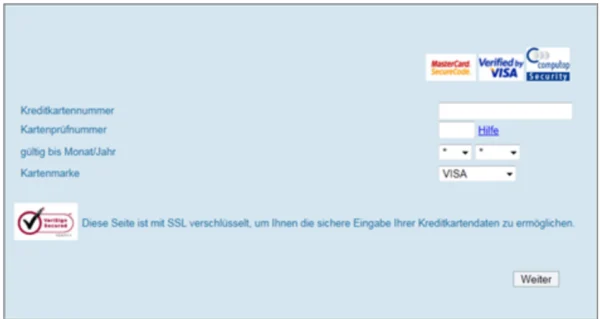
Select the desired amount here and click „Continue.“ Now enter your credit card information to proceed with the payment. The page is, of course, SSL-encrypted, so your credit card information remains secure.
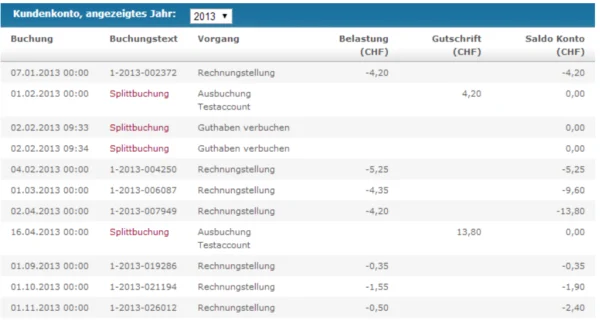
View Customer Account

View your current account balance here. This is an accounting figure consisting of invoices, credit memos, and payments received in your customer account. A positive balance here indicates your available balance. It is not comparable to the balance shown on the home page, which also includes current fees that have not yet been invoiced.
Text Messages & Conferences
Send a text message
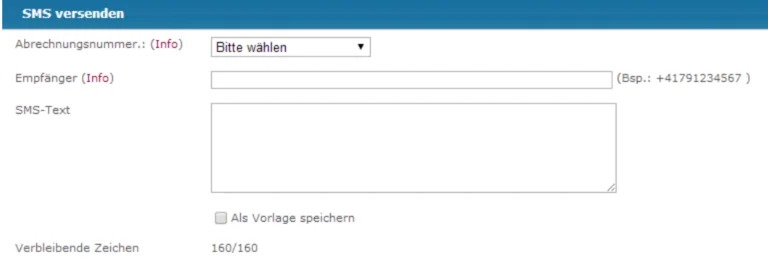
You can send text messages from your Winet numbers. To do so, go to „User Data“ (on the left side) and click «Send SMS.» Here, you can select which of your numbers to use to send the message. Recipients must be entered in the correct format (+417XXXXXXXX). After entering the information, simply click “Send.” Please note that this service is subject to a fee and is for sending messages only.
Conference Room
You can also book conference rooms with us:
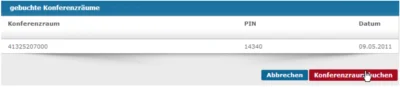
After clicking „Book a Conference Room,“ the menu below appears:
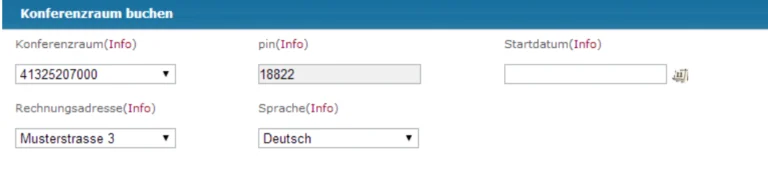
Select the conference room number, billing address, and language for the announcements here. Under „Start Date,“ you can select the desired date from the calendar and then click „Save.“.
Use the conference room
To use your conference room, simply call the number you just dialed. You’ll hear a message asking you to enter your PIN. After entering it, enter your name and join the conference. Other participants should follow the same steps so that everyone can then talk to each other.
Subscription
Customer Reservations
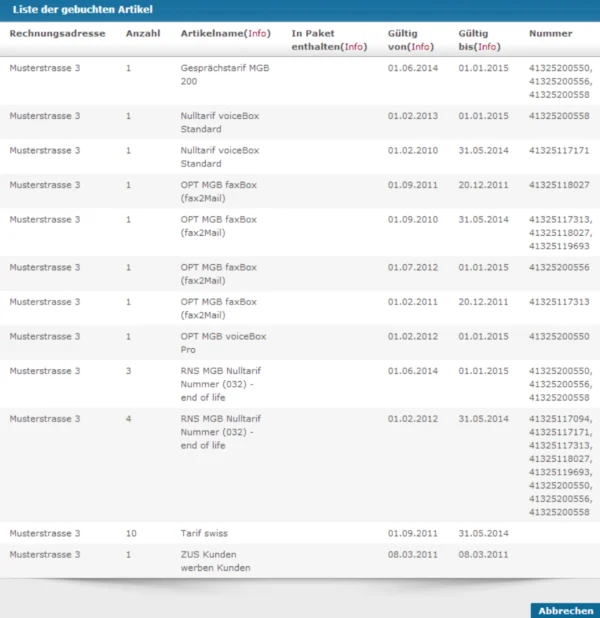
View your bookings and their dates here. Items created by January 1 of the following year will automatically be recreated for the coming year.
Customer Billing
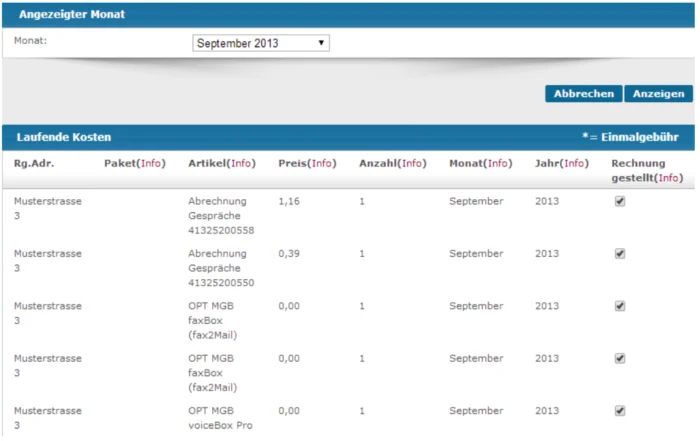
Here you can see the running costs for the respective month. The empty box on the right indicates that this item has not yet been billed.
General Information About the voiceBox
voiceBox Standard
The personal voicemail service for your Winet line: Upon request, you’ll receive a free «Standard» voiceBox with your Winet line, which records messages from missed calls. You can access the voiceBox by phone (SIP, free of charge) and will receive an email notification for every incoming message.
IMPORTANT: The «Standard» voiceBox includes a standard greeting that cannot be changed. However, it is free of charge.
voiceBox Professional
With the «Professional» voiceBox, you can record your own greeting message and update it at any time via the admin panel using a WAV file! You can access the voiceBox by phone (SIP—free of charge) and will receive an email every time a new message arrives.
Instructions on how to use the voiceBox Professional are provided in Section 6.3.
How do I use my voiceBox?
Your voiceBox is connected directly to your phone number. To listen to your voiceBox, call your number via SIP using the area code „086,“ press the # key during the greeting, and then enter the password 9999 (please change this).
Example using the number 0041325200402
Dial: 086 032500402
Next, enter your number (in the national format) and then your PIN (default: 9999).
You can also access your voiceBox from a landline. Simply call your SIP number, wait for the voice prompt, and then press the # key again.
How can announcements be recorded?
Recording with the No. 23 Recorder
To record an announcement on your computer, we recommend the freeware program No23 Recorder. You can download it from the following link: http://www.no23.de/no23web/MP3_OGG_Aufnahme_Player_Download.aspx
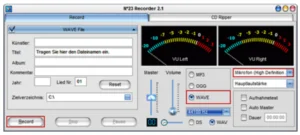
To record an announcement, enter a title for the file on the left and select the desired destination folder. Select „WAVE“ as the format. You may need to select a different input under „Microphone“ on the right to ensure that the sound is recorded from the correct microphone.
Recording with Wave Recorder
Alternatively, we recommend the freeware program “Wave-Recorder.“ With this tool, you can record the announcement using your sound card and then save it directly in the correct .wav format. The default format is the correct one; you don’t need to make any changes.
Please note:
The .wav file must not be exactly 8000 Hz!
Download Wave Recorder: http://www.waverec.de/WaveRec.zip
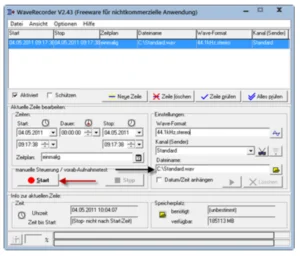
Once the Wave Recorder is running, you can start recording by clicking „Start“ and stop recording by clicking "Stop." In the settings, you can select the file name, save location, and wave format. The file is saved in the path indicated by “Filename” (black arrow).
How can I convert an existing voice message into a Wave file?
To convert an existing announcement in any audio format to a .wav file, we recommend the free software „Switch Sound File Converter.“ The application can be downloaded from the following link:
http://www.nch.com.au/switch/index.html
For our purposes, the Sound File Converter is sufficient, so you can uncheck the boxes before installing it. Once the installation is complete, open the Sound File Converter.
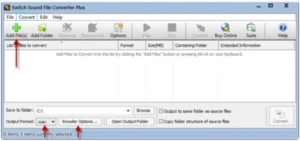
First, click „Add File(s)“ and select your voiceBox file. Now, at the bottom, select .wav under „Output Format,“ and click “Encoder Options….” Make sure that 8000 Hz is not selected here; otherwise, the file cannot be uploaded to https://my.winet.ch.
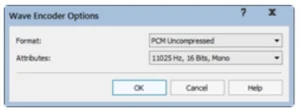
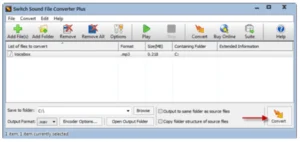
If all settings are correct and the correct file is listed among the files to be converted, simply click . The file will be saved separately as a .wav file in the specified path („Save to folder:“). The original file remains unchanged. Instructions on how to upload the file to your SIP number are provided in section 5.3.
Uploading the Announcement
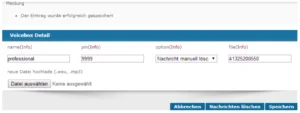
Go to the voiceBox management page. Here, you can change your voiceBox PIN and configure other settings, such as the file name and the option for when voiceBox messages should be deleted. Under „Upload New File,“ you can now upload the message you created to the voiceBox. Now locate the file and simply click „Save.“ If the following message appears, your greeting has been uploaded to our system:
Embedding the Announcement
After an announcement has been uploaded, it must still be activated on the voiceBox. To do this, call your voiceBox and press 5 to access the advanced options. Now press 2 to enter the menu and select an announcement. Then use the 1–9 keys to select the desired announcement and save it.
Empty a full voiceBox
Your voiceBox has limited storage space, so you’ll need to delete files from time to time. Select the „Automatically delete messages after sending“ option, and you won’t have to worry about it anymore. You also have the option to delete messages yourself by selecting „Delete messages manually“ and then clicking „Delete messages.“.
Note:
The files are deleted only from our system. However, if you have entered an email address in your account settings, every message will be sent to you immediately via email. These files remain
faxBox
What is a faxBox?
Winet Network Solutions AG offers faxBoxes. A faxBox is designed to replace an expensive hardware fax machine, and is also easy to use and affordable. A faxBox is simply a fax-to-email and email-to-fax interface, allowing you to send and receive faxes via email right from your computer.
How do I use a faxBox?
Just like a regular fax machine, the faxBox has a phone number that you can use to receive faxes, just as you would with a standard fax machine. To send a message from the faxBox to another device, you must compose an email. In addition to its phone number, each faxBox has a password that can be changed at any time in the Winet Admin Panel. Here’s an example of an email to the faxBox:
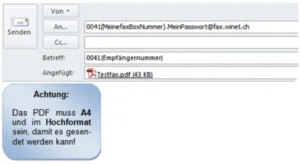
In the „To:“ field, enter the phone number of your own faxBox with the 0041 country code and its password. These two pieces of information are separated by a period. Always select @fax.winet.ch as the domain. In the “Subject” field, enter the recipient’s fax number, again with the 0041 country code. Leave the message field blank. The actual message to be sent to the recipient is contained in the PDF you created. Now send the fax.
Shipping via my.winet.ch
You also have the option to send faxes directly through my.winet.ch. To do so, go to „Send Fax“ under “User Data” on the left-hand side.
Then select the sender's number and enter the recipient's number in the blank field. Don't forget to select the PDF you want to send before clicking "Send.".
Shipping to Multiple Recipients via my.winet.ch
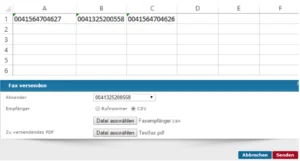
You also have the option to send a fax to multiple recipients at the same time. To do this, select „CSV“ under „Recipients“ and upload the file. Make sure that each number is entered in its own cell with “0041” so that the fax is sent correctly. To ensure that the leading zeros remain in the cells, the cells must be formatted as “Text.”.
The PDF for the faxBox
There are several ways to create a PDF:
Using a PDF printer
PDF printers such as Adobe Acrobat or the free FreePDF allow you to use a virtual PDF printer instead of a regular printer. The PDF printer saves the file in PDF format to the location of your choice.
Using the Microsoft Word add-in
Install the Microsoft Word add-in for the easiest way to create a faxBox-compatible PDF. Under the „Save As“ menu item, you can add the „Save as PDF or XPS“ option. The add-in can be downloaded for free at the following link: http://www.microsoft.com/downloads/dede/details.aspx?familyid=4d951911-3e7e-4ae6-b059-a2e79ed87041&displaylang=de
Redirects
To set up call forwarding, go to https://my.winet.ch and log in. On the left-hand side, you’ll find „Configure Call Forwarding.“ Click this link to create a new call forwarding rule. After setting it up, don’t forget to enable the confirmation for incorrect configurations; otherwise, the call forwarding cannot be saved (red arrow). Call forwarding is always configured per public number. Multiple configurations may exist, but only one can be active at a time.
Here is an example of how to forward a call to the voiceBox:
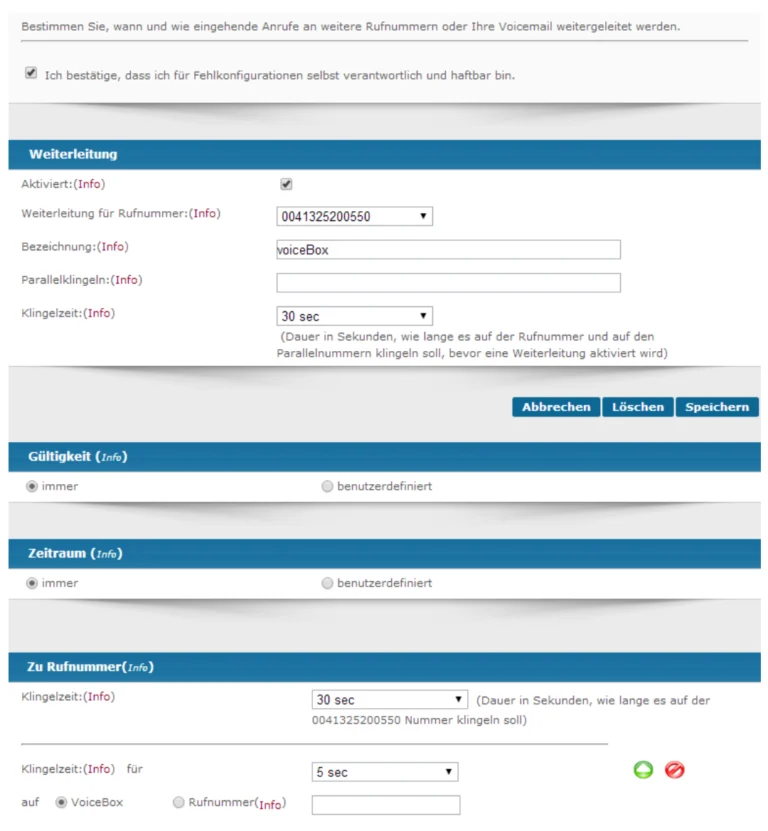
For example, if you forward a cell phone number, it’s important to set a long enough ring time. Keep in mind that it takes a few seconds for the call to connect. The 5 seconds shown in the example would not be enough in this case.
Forwarding
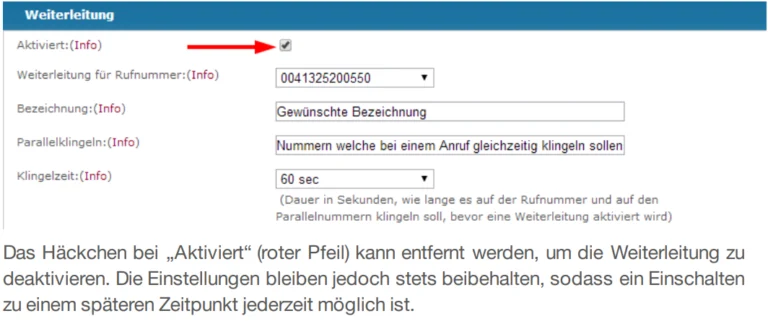
You can uncheck the box next to „Enabled“ (red arrow) to disable the redirect. However, the settings are always saved, so you can enable it again at any time in the future.
Validity
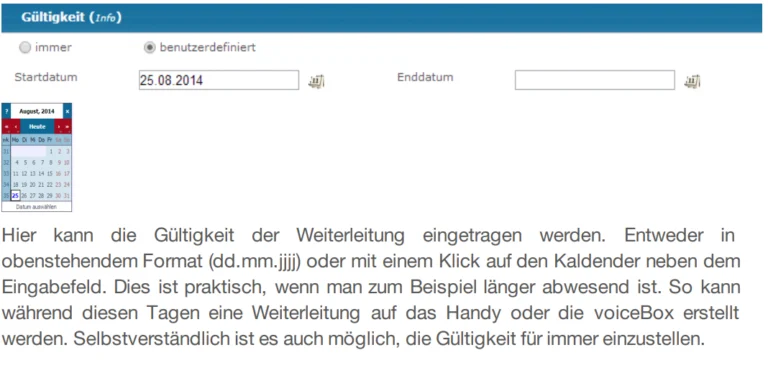
Here you can enter the validity period for the call forwarding. You can either use the format shown above (dd.mm.yyyy) or click on the calendar next to the input field. This is useful if, for example, you’ll be away for an extended period. This way, you can set up call forwarding to your cell phone or voicemail during those days. Of course, it’s also possible to set the forwarding to be permanent.
Time period
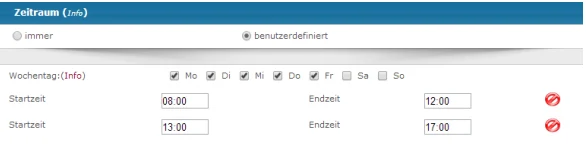
Here, you can define the time periods and days of the week for each call forwarding rule. For example, you can forward calls to business extensions only during business hours. It is also possible to keep call forwarding enabled at all times. A call forwarding set from 5:00 p.m. to 8:00 a.m. will not work. Therefore, such a call forwarding must be configured as follows: from 5:00 p.m. to 11:59 p.m. and from 12:00 a.m. to 8:00 a.m.
To Phone Number
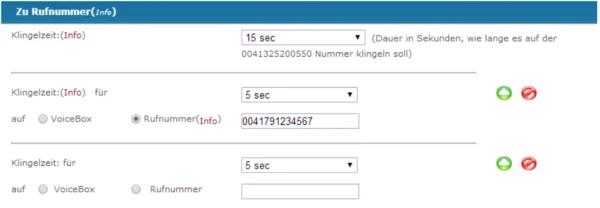
Here is the main part of a redirect:
You can set the ring time as you like. You also have the option to forward calls to any mobile, landline, or VoIP number. Click «Add Another Entry» to add additional forwarding options. In the example above, the call rings first on the extensions; after 20 seconds, it is forwarded to the cell phone. If no one answers the cell phone within the first 20 seconds, the call is forwarded to voicemail.
General Questions
LSV (Direct Debit System)
In general, we have introduced direct debit for end customers. Contrary to what many people claim, it is becoming increasingly popular. In particular, we offer an 1% discount on invoices paid by direct debit.
Invoice Issuance and Delivery
At the beginning of each month, we run an invoicing cycle for the previous month. We only issue invoices if certain minimum invoice amounts are met. These are broken down by quarter. For the first two months of a quarter, we issue invoices for amounts of CHF 10.00 or more. At the end of the year, invoices are always issued, regardless of the amount. Invoices are normally made available for download as PDFs only in the AdminPanel. The customer receives an email notifying them that an invoice is available. It also includes a statement of their account balance. This email is always sent. Upon request, the invoice can be attached to this email as a PDF. You can also choose to have the invoice mailed; however, we charge a fee of CHF 5.00 if the invoice amount is less than CHF 100.00.
Billing and Collections
We initiate a dunning cycle after 45 days. This cycle runs when customers have no credit balance, are not subject to a dunning suspension, and have invoices that have been outstanding for more than 30 days. Customers receive an email listing all outstanding invoices and their account balance, along with a notice that their credit limit will be revoked during the next dunning cycle. We initiate the next dunning cycle after 50 days. If invoices are still outstanding for more than 45 days and there is no credit balance, the credit limit will be removed. After that, only emergency calls, calls to 0800 numbers, and calls to Winet can be made. Contrary to many claims, the customer’s service is not suspended. You can resume making calls immediately as soon as the customer account has a credit balance again. If bills remain unpaid after 60 days at the latest, the line will be suspended and all billing documents will be forwarded to a collection agency for debt collection.
Support
Please note that technical consultations are subject to a fee. We have provided a detailed list of what this entails: staging.winet.ch/myphonesupport.
Guaranteed call quality
Please keep in mind the benefits of a bandwidth manager. If you actively use your ADSL or cable connection in addition to making phone calls, overloading your Internet connection can lead to poor voice quality during a phone call. To ensure the best possible call quality at all times, we recommend using a bandwidth manager. Please also note that good call quality is often directly related to having the correct settings. You can find some useful tips and instructions on our website at staging.winet.ch/myphone-support. We’d be happy to assist you.
Don't hesitate to contact us if you need assistance. We hope you enjoy making calls with myPhone by Winet!
Contact Information at a Glance
Winet Voicetec Solutions AG
31 Täfernstrasse
CH-5405 Baden-Dättwil
Internet: staging.winet.ch/
Administrative Matters (registrations, myPhone bookings, contracts, invoices, CDR reports, cancellations, etc.)
Email: central.service@winet.ch
+41 56 520 20 20
Technical Support:
Email: customer.service@winet.ch
Business Customers: +41 56 520 20 00
Residential customers: 900 66 39 32 (2.50 / min.)
Bank Information: Aargauische Kantonalbank, 5600 Lenzburg / Clearing No. 761
Account No.: 16.1.160.978.73 / IBAN: CH8900761016116097873
BIC/SWIFT for international payments: KBAGCH22
ombudscom is the arbitration body for disputes in the field of telecommunications or
Value-Added Services: www.ombudscom.ch Tel. +41 31 310 11 77