

Network Overview
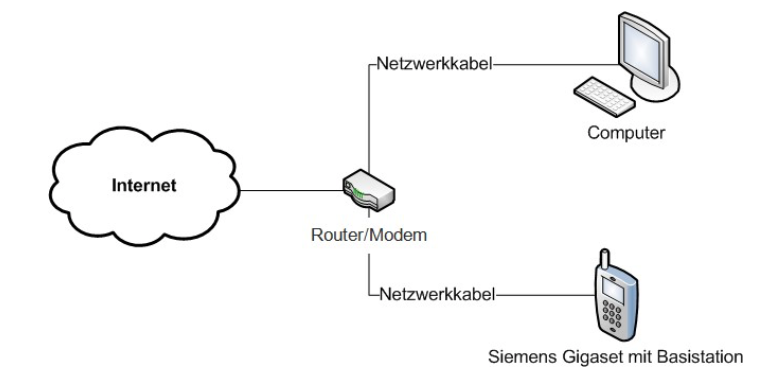
Please note that you must connect your Siemens Gigaset phone exactly as shown above. This is the only way you can configure your phone using your computer.
Setting Up Your Number on the Gigaset
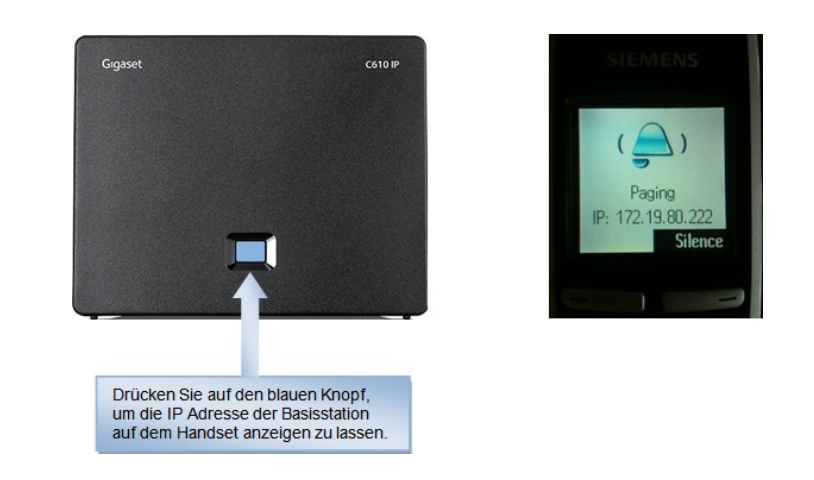
How do I access the web interface?
To access the Siemens Gigaset web interface, enter the IP address that appeared on the handset's display during the paging call into your web browser (Firefox, Internet Explorer, Safari, etc.).
Example: http://172.19.80.222
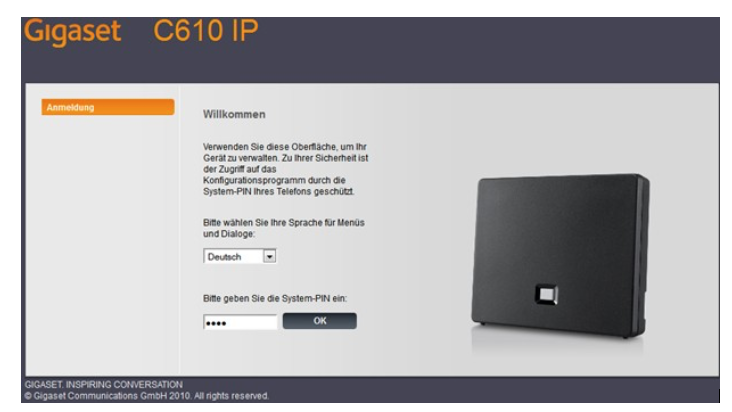
You will then be taken to the login page shown above. The default password is always „0000“.
Change the default password
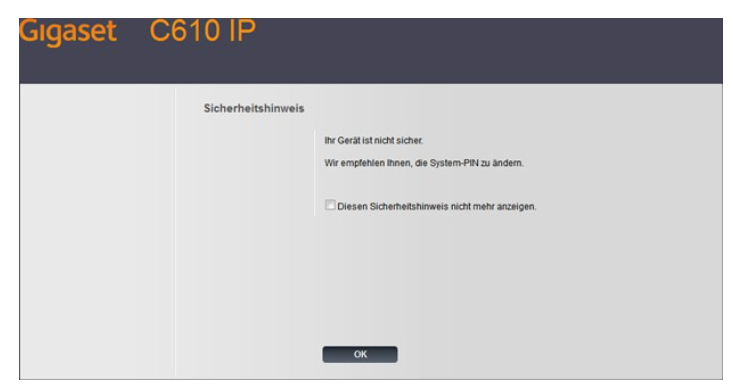
The first time you log in to your phone, you'll see a message asking you to change your password. However, this isn't strictly necessary.
If you change the default password, be sure to keep your new password in a safe place in case we need to make any changes to your phone.
Home
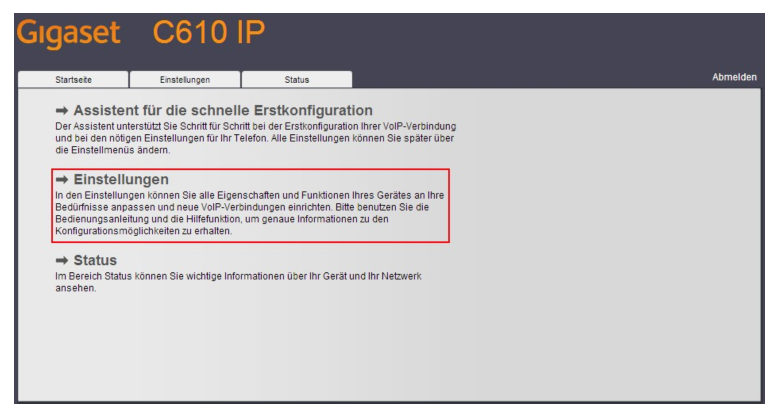
After logging in, you'll be taken to the Gigaset home screen. From there, you can click directly on „Quick Setup Wizard.“.
Configuration
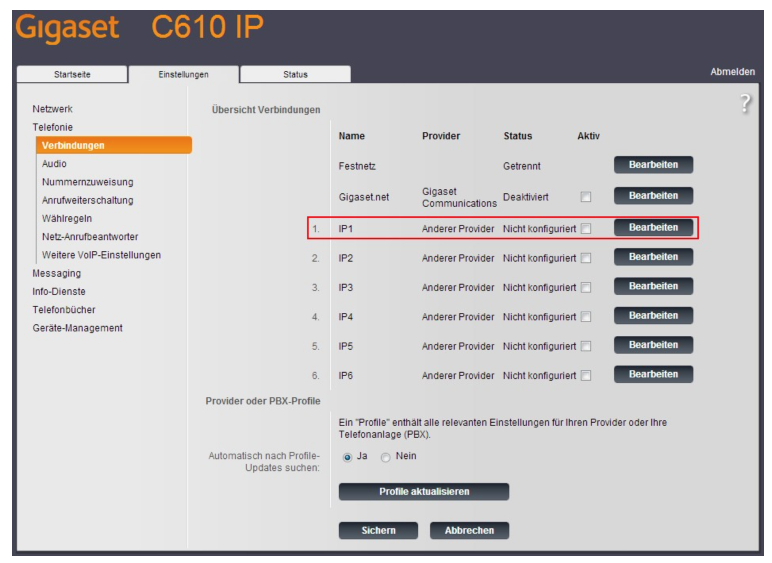
To set up your Siemens Gigaset for use with a voxGate or hostedPBX, you'll need to configure it manually. To do this, go to Settings -> Telephony. Then click «Edit» next to the desired connection.
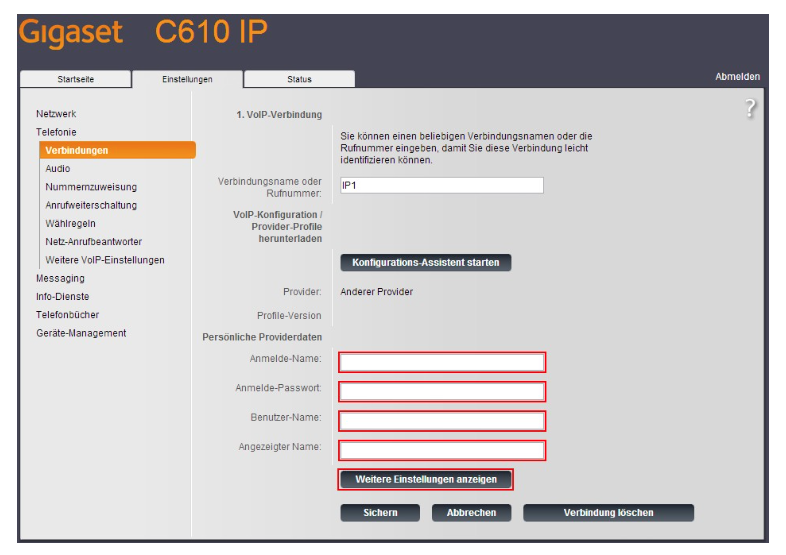
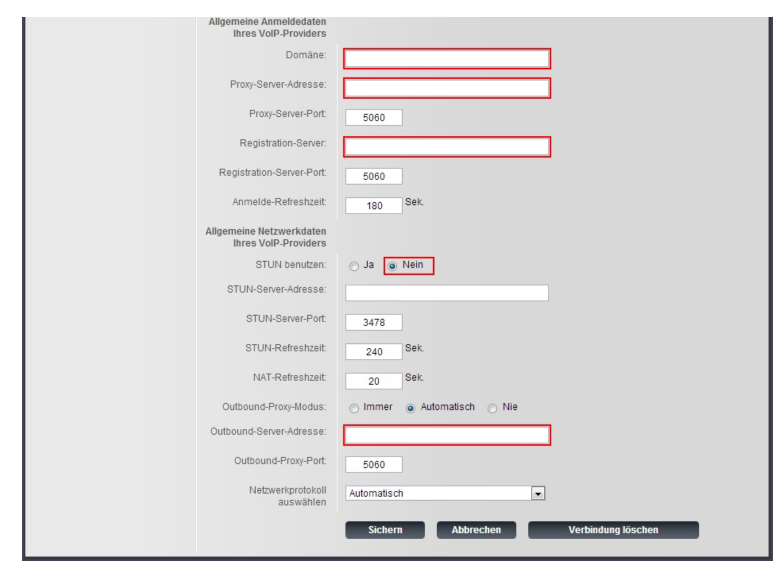
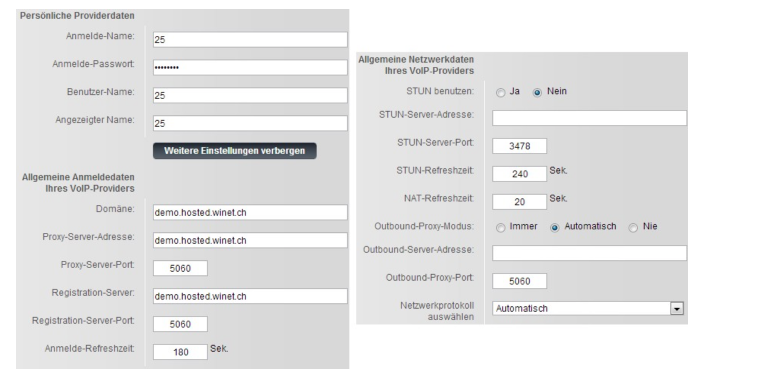
Enter your extension in the "Login Name," "User Name," and "Display Name" fields.
Support Winet Voicetec Solutions AG
For support inquiries or technical assistance, our VoIP engineers are available to assist you during our business hours.
Service Period
Proactive, staffed operational support is available during business hours (AZ) on business days from Monday through Friday (excluding holidays) from 8:00 a.m. to 12:00 p.m. and from 1:30 p.m. to 5:00 p.m. During other times (OT), the optional on-call service is available.
Coordinates
You can contact our Customer Service as follows:
- Email service@winet.ch (to open a ticket)
- Residential Customers 0900 66 3932 (CHF 2.50/min)
- Business Customers +41 56 520 20 00