

Introduction
How do I connect to the adapter?
During the initial setup, connect your adapter to your network under „Internet.“ By default, you can find your Linksys adapter at the following IP address: 192.168.0.1. Enter your adapter’s IP address into a browser address bar (Internet Explorer, Firefox, etc.).
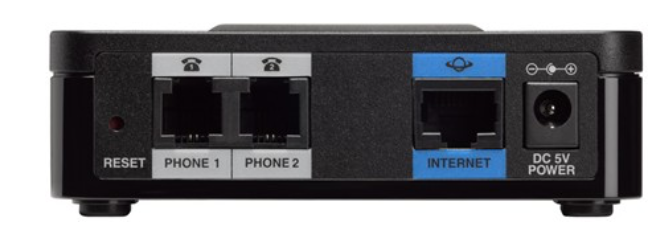
How do I find out the IP address of my network adapter?
Connect an analog phone or fax machine to one of the two phone jacks and follow these steps:
- Pick up the phone
- Type * * * * on your phone's keypad
- Type 110# on your phone's keypad
- Write down the output (IP address)
Update Firmware
Before you set up your device, we recommend updating the adapter's software to the latest version. The following steps explain how to do this.
Info: The current settings on the adapter will remain unchanged after the update.
Download the firmware
Click the following link to download the latest firmware: http://www.cisco.com/cisco/software/type.html?mdfid=283998771
First, select „Analog Telephone Adapter (ATA) Firmware“ there“
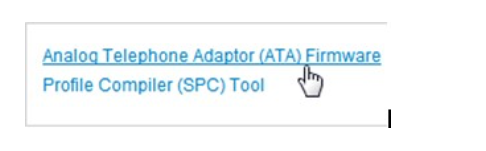
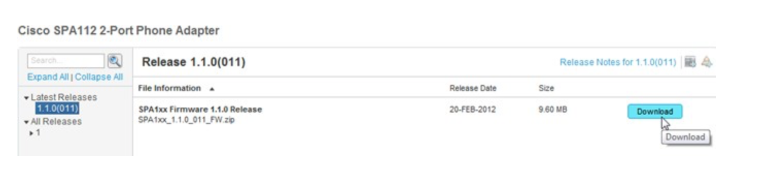
Then click „Download“ next to the latest version.
Next, unzip the downloaded file and select it in the adapter's web interface under "Firmware Upgrade.".
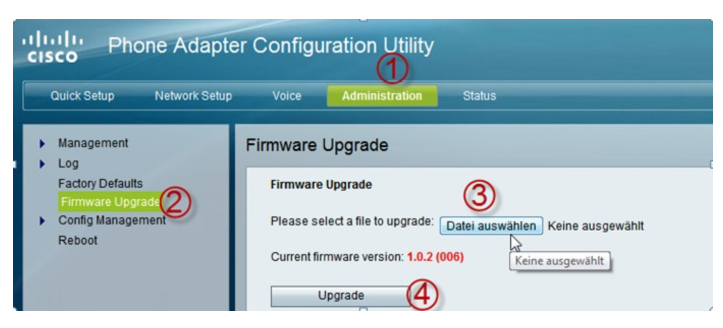
After you click "Upgrade," the adapter will be updated. Do not interrupt this process.
Default Settings
Log in as an administrator
By default, you can log in using the following username and password:
Username: admin
Password: admin
For security reasons, we recommend that you change your password.
Configuring the Adapter
SIP Settings
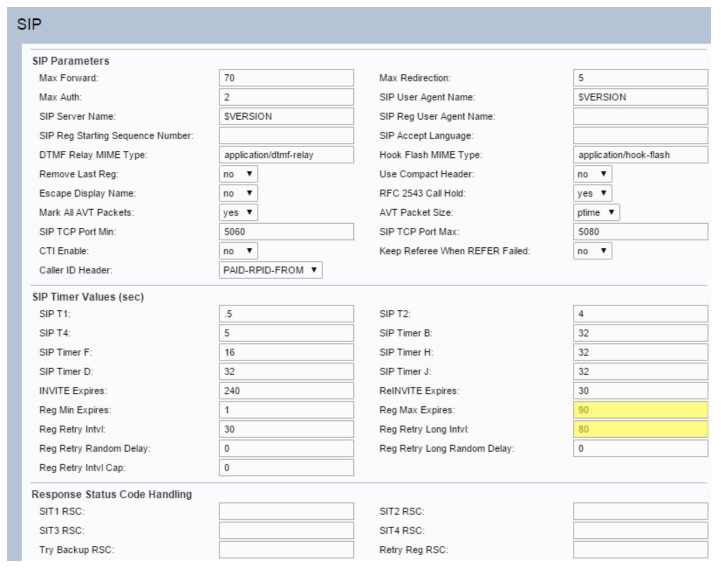
To configure the SIP settings, click „Voice“ and select the SIP tab. Here, you can compare the settings using the screenshots below and apply them. The values highlighted in yellow are particularly important; please make sure they are entered exactly the same way on your adapter.
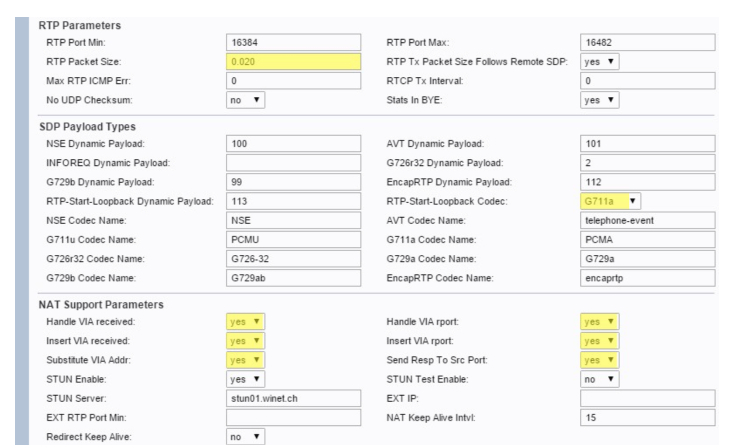
If your company has a static IP address, you can enter it under "EXT IP" and leave the "STUN Server" field blank.
Configure Line
Now switch to the „Line 1“ tab. Here, too, you can use the screenshots to find the required values. Be sure to check that the line is enabled (Line Enable: yes).
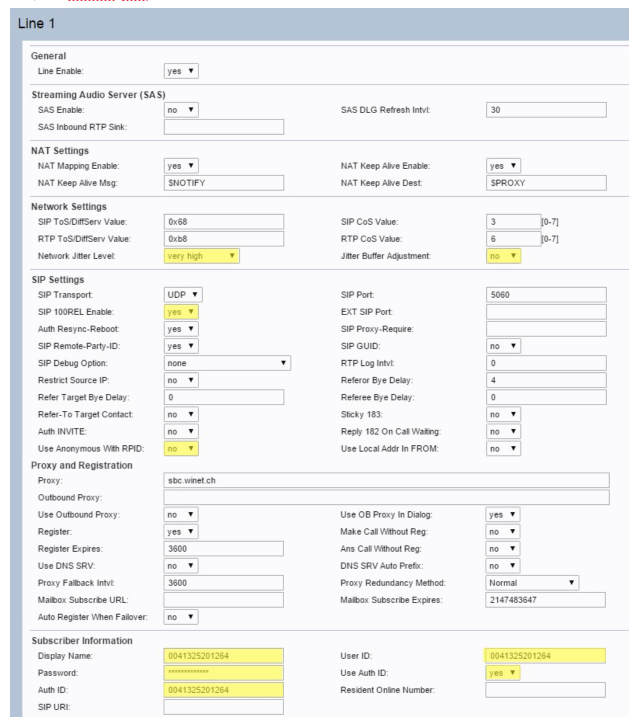
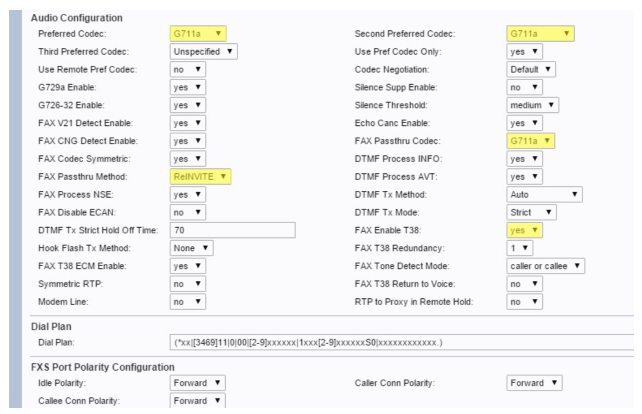
You can find the information required for the „Subscriber Information“ menu item at https://my.winet.ch in the details for your fax number.
Support Winet Voicetec Solutions AG
For support inquiries or technical assistance, our VoIP engineers are available to assist you during our business hours.
Service Period
Proactive, staffed operational support is available during business hours (AZ) on business days from Monday through Friday (excluding holidays) from 8:00 a.m. to 12:00 p.m. and from 1:30 p.m. to 5:00 p.m. During other times (OT), the optional on-call service is available.
Coordinates
You can contact our Customer Service as follows:
- Email service@winet.ch (to open a ticket)
- Residential Customers 0900 66 3932 (CHF 2.50/min)
- Business Customers +41 56 520 20 00